
Help
MagicPresenter is a free, lightweight app for the iPad that allows you to give presentations with pdf slide sets and offers helpful features for a convincing presentation that you might miss when using Microsoft PowerPoint or Apple’s Keynote.
Here you will find important information on how to use the app. We are constantly updating our web pages and our help section according to the questions we receive from our users and to the latest version (rel. 2.2a) of our software.
Open your presentation (slide decks view)
When you open the magicPresenter App, you will see a desktop with all your previously opened or imported slide decks displayed with previews of their first slide.
- There are three ways to open a PDF slide deck:
- In the Slide Decks View, click on
 , select and add a file
 the slide deck is shown on your desk within the currently opened folder by clicking on the slide preview, you can open it;
- Open or create your pdf file outside the magicPresenter (e.g. in Acrobat Reader or Keynote), click on the sharing icon
 and choose magicPresenter as target application magicPresenter is started with the file opened;
- Copy via your file manager a pdf-file to the on my iPad/magicPresenter folder it is shown in the slide desk view (root folder), when you open magicPresenter next time.
- In the Slide Decks View, click on
In the Slide Decks View you can also:
- Create a folder to group slide decks:
- Clicking on
 creates a new folder with random name, use the folder’s context menu
 to rename it;
- Press and hold a slide deck until it gets highlighted then move and drop it into the folder;
- In order to move a slide deck from a folder back into the root directory, drag and drop it to
 .
- Clicking on
- Refresh the overview
 ;
- Sort your slides by different criteria with
 .

You can also manage you slide deck files by clicking on context menu . The context menu allows:
- Archive your slide deck: The magicPresenter archive can be found in the folder on my iPad/magicPresenter/Archive. Here a file with the extension mpa is stored for every snapshot of a presentation (including slide deck pdf and annotations) generated using the context menu’s item Archive. It can be restored by simply opening the file in the file manager application. Using mpa files allows you to backup the current state of a presentation and distribute it to other devices, e.g. via AirDrop;
- Delete a slide deck;
- Export the slides and annotations (handwriting, text) of a slide deck in a printable format. The exported files can be found in the folder on my iPad/magicPresenter/Exports;
- Rename a slide deck;
- Rearrange the slides of a slide deck: in an overview of all slides, empty slides can be inserted, slides can be deleted or swapped;
- Replace a slide deck.

Replace your slide deck with updated PDF slides
If you have made changes to your PDF slide deck, you can:
- reload the new PDF file into the magicPresenter app;
- check and correct the alignment of your previous annotations with the new slides.
The app will try to identify unchanged or rather similar slides. However, please note that swaps of slides is not covered by our algorithm and need to be applied manually. See this table for details on the appropriate GameKit key codes.

Prepare your presentation (presentation view)
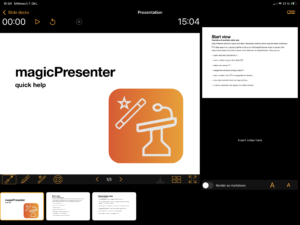
In the Presenter view, you see your current slide enlarged, an overview of the next slides below it, and the next slide and your typed notes on the right. For preparing your presentation you can now:
-
- Write down invisible notes directly on the slides with magic ink
 ;
- Delete your slide notes: with clear current writing
 ;
- If you want to have typed notes next to your slides, you can either type them directly into the right field, use the scribble feature of the Apple Pencil or dictate them by clicking on
 . There are two options available: richt text or markdown. For the latter, type in your text, then enable the Render as markdown slider. Following link provides a list of supported markdown elements and respective syntax. To change markdown text, disable the slider to return to textual input. If you are using a hardware keyboard to insert textual notes, press <control> together with the period (.) key to release the focus from the text field.
- Write down invisible notes directly on the slides with magic ink
- If you need more space for your notes on the slide: scroll the slide by two fingers — below every slide there is an area where you can write even more.
- If you want to jump to a previous or later slide, you can navigate slides via:
- A two fingers (left/right) swipe gesture on the slide;
- Directly below the main slide via (previous
 or next
 );
- Via the slide image collection at the bottom. The current slide is highlighted by an orange border. In order to prevent unintended jumps to a slide while writing, activate Apple Pencil’s hover feature if available.
- The slide deck overview: click on
 and jump to slide by tap.
Change settings (slide decks view)
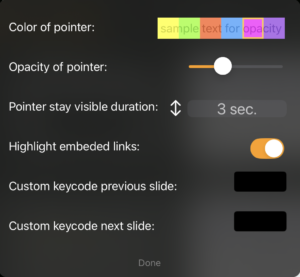
Before holding a presentation you might want to change some settings. Click  on top of the Slide Decks View in order to choose
- The color of the virtual laser pointer.
- Its opacity in order to keep text below readable.
- The pointer’s stay visible duration (time until pointer becomes invisible after last movement).
- Whether or not links are highlighted (only visible for presenter, not on projector screen).
Furthermore, you can provide custom key codes to change slide to make magicPresenter working together with any remote control. This table provides the appropriate GameKit key codes.
Hold your presentation (presentation view)
- To start your presentation, connect the iPad with a projector (via HDMI or AirPlay), open your slidedeck in MagicPresenter, and press
 to show the presentation. If you want to hide it, press again;
Note: The settings of the secondary display (projector) in the iPad’s Display & Brightness configuration must not be set to extended display! - Troubleshooting: If the projector is detected but magicPresenter is not shown, try double-clicking on
- If you want to keep an eye on the time you use the presentation duration panel: (start
 , pause
 , reset ) and clock;
- You can point on your slides
 or add visible hand writing
 ;
- You can scroll down the slides to the extended by a two fingers swipe. To remind you that you have prepared some notes there,
 button is enabled, clicking it jumps to the downmost position with non-blank content;
- You can navigate to other slides, by a two fingers swipe gesture, via or next, the image thumbnails at the bottom, or the slide deck overview ;
- If you presentation contains links (e.g. to an online video), select the pointer tool and use a long press gesture (at least 1 second) on the link to open it. Hyperlinks are highlighted in blue, links to pages of your PDF (GoTo-actions) in yellow. Since you may want to write on the link, e.g., highlight it using a marker, it cannot be opened while using pen or magic ink.
- If you want to show a video, it needs to be embedded in your PDF as a link (e.g., to YouTube). A simple hyperlink will suffice. Then, during presentation, just long-press the link with the laser pointer, and a browser presenting the link will open.
Hint: If is selected, a presenter like logitech’s spotlight can be used to navigate slides or to point on your slides.
Links
If you have embedded hyperlinks in your slides, they typically refer to content from the internet. However, you can also link to media stored locally on you iPad as follows:
- Copy or move the desired file (e.g., a mp4 video) into the
magicPresenter/Mediasubfolder. - In your PDF, insert a hyperlink using the following format:
magic://<filename_with_extension>
Example:
If you want to open a video named MyVideo.mp4 during your presentation, the embedded hyperlink should point to magic://MyVideo.mp4. During your presentation, select the pointer and perform a long press on the link-text to play the video.
Note: Only media formats supported by a web browser can be played.
GoTo-actions
We support GoTo-actions embedded within your PDF, too. They let you jump to the addressed slide within the same document. Like media links, use a long press gesture on the link-text with pointer tool selected. You return to the starting point of the GoTo-link by a special one finger (Apple Pencil) gesture: with pointer tool active, swipe down and then left (90 degree turn). To be recognised, the left swipe must be rather dynamic — it is worth testing before your presentation.
Hint: You can use LaTeX’s hyperref package together with a \hyperlink{page.10}{Jump to page 10} statement to create a GoTo-action with link-text Jump to page 10 that is a shortcut to, e.g., page 10.
Record and stream your presentation
You can record your presentation or stream it via rtmp by clicking on: 
This function captures both audio and the projector view and is therefore available only when a projector is connected to the app. Once you click the icon, a configuration window opens.
- Recording only: To record your presentation without streaming, set the Recording with RTMP-streaming slider to off, and click Start. A system dialog will then ask whether you want to record the screen and audio, or only the screen. Stop the recording by tapping again. A system dialog is opened that offers a preview and allows to save and share the screen recording. Clicking Save stores the recording in your iPads’s film roll.
- Streaming:
To stream your presentation, you must specify at least the Streaming server address (an URL starting withrtmp://orrtmps://). A Stream key is required for services such as YouTube (see this page for details). Some servers may also require a User and Password. Altogether, the full URL takes the following form:rtmp://user:password@streaming.magicpresenter.com:1935/stream

Hint: If Recording with RTMP-streaming is used, a wrong server address, missing stream key or credentials (if needed) or a malfunctional server may make the local video recording to fail, too.
——
Missing any function in our app? Below you find suggestions made by other users of how to extend magicPresenter’s feature set. If your idea is not listed yet, please don’t hesitate to leave a request. Maybe your suggestion finds its way into a forthcoming release.
magicPresenter feature ideas
- 2Use it with a presenterThank you for this App, which I love using in my lectures. If it was possible to combine it with the use of a presenter (i.e. Logitech Spotlight) that would be even better!
- 1Websites not visible on secondary screenGreat app! If you use the presenter's display and a secondary screen/projector (via extended display) and then open a website on your slides, the website is only visible on the presenter's display, n... Read more...
- 1Zoom into slidesIt would be great if you could zoom into slides via a pinch gesture (like in Preview, for example). This can, for example, be helpful to explain mathematical formulas. We will continue digging int... Read more...
- 1Laser pointer optionsThanks for the excellent app. It would be great to be able to configure the laser pointer. - The light green is not ideal for white backgrounds. Also, it blocks the slide's content. Transparency ... Read more...
- 1Slide navigationSlide navigation controls (next-slide and previous-slide) are relatively small. In the standard view, one can click on the preview frame instead of next-slide. In full-screen mode, however, one has to... Read more...
- 1Page Up / Page Down for presenter remotesThank you for this wonderful app, which I would love to use in my lectures. My presenter remote (Logitech R400) sends Page Up and Page Down to change slides. It seems magicPresenter reacts to the l... Read more...
- 1Use remote SatechiThanks for the nice app. It seems not possible to go to next or previous slide with the remote Satechi R2. All the other presenter programs are working on this remote. Thank you for looking at the iss... Read more...
- 1Recording MovieI love your presenter software. However, I really need to make a movie file. When I start displaying a PDF, the record button is disabled. Did I do something wrong? I assume you did not connect you... Read more...
- 1Support internal hyperlinksThank you for the app. Please support standard pdf internal navigation using the `/GoTo` action, which allows hyperlinks to navigate to another page or destination within the same pdf. External web l... Read more...
- 1
- 1Pencil reconfigFor some reasons the text written by pencil does not stay. The one written by finger stays. It would be nice that the pencil notes stay. I’d also use finger to point in that setup. It could be prog... Read more...